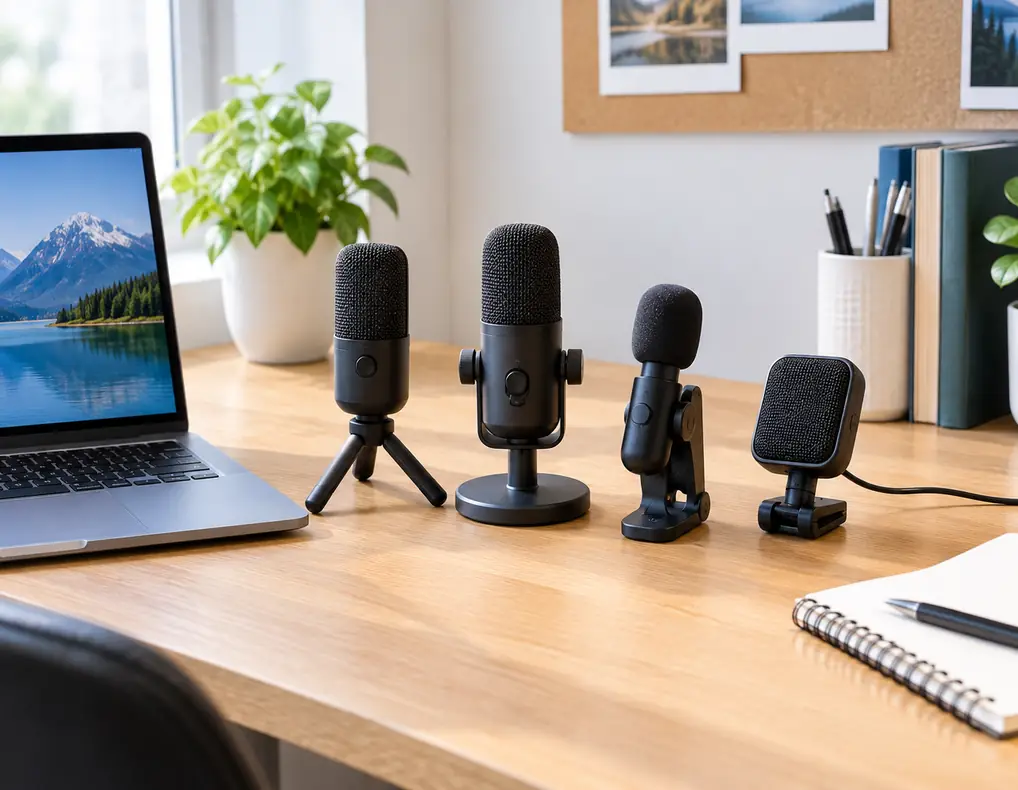
The best compact microphones for small home offices should give you a practical way to improve voice capture without taking over the limited space on your desk.
A small workspace may already contain a laptop or monitor, keyboard, mouse, lighting, speakers, and other everyday equipment. A large microphone stand can quickly consume the remaining space, especially when the desk is also used for writing or other tasks.
The right microphone therefore depends on more than sound quality alone. Placement, microphone size, connection type, mounting method, room noise, and everyday controls can all affect how well a microphone fits your workspace.
This guide compares five compact microphone designs for small home offices. Instead of ranking brands or claiming that one microphone is best for everyone, it focuses on different form factors and use cases so you can choose according to your desk, room, and communication needs.
Affiliate Disclosure: Some links on Buy Facto may be affiliate links. If you purchase through one of these links, we may earn a commission at no additional cost to you.
Amazon Associates Disclosure: As an Amazon Associate I earn from qualifying purchases.
Best Compact Microphones for Small Home Offices: What to Look For
Before choosing a microphone, decide how and where you will use it.
A microphone that works well for a dedicated recording setup may be unnecessarily large for a simple video-call workstation.
Desktop Footprint
Measure the area available for the microphone and its stand.
The microphone body is only part of the space requirement. The stand, controls, cable, and movement needed to position the microphone should also be considered.
Pickup Pattern
A microphone’s pickup pattern describes how its sensitivity varies according to the direction sound arrives from.
A cardioid pattern is more sensitive toward the front and less sensitive toward the rear, which can be useful when one person is speaking from a defined position. (Shure)
For a small office, the useful question is not simply which pattern sounds better. It is whether the pattern matches your seating position and the sources of unwanted sound around you.
Microphone Type
Dynamic and condenser microphones use different technologies and can behave differently in a room.
Your choice should consider the microphone’s intended use, placement, sensitivity, and the amount of room sound you want to capture.
Connection
USB microphones can be convenient for direct computer use.
XLR microphones generally belong to a more expandable audio setup and may require compatible external equipment.
Choose the connection according to the equipment you already have or actually plan to use.
Mute and Gain Controls
A physical mute control can be useful during meetings.
Gain controls can also be convenient when you regularly adjust input level, although software controls may be enough for simpler setups.
Mounting Method
The mounting system can have a larger effect on desk space than the microphone itself.
Compare a desktop stand, clip, clamp, or boom arm according to your available room.
Cable Requirements
A compact microphone still needs a cable unless the specific system uses wireless transmission.
Look at the connector location and cable length before choosing where it will sit.
Room Conditions
A microphone does not operate in isolation.
Fans, air conditioners, keyboards, traffic, conversations, and room reflections can all affect recordings and calls.
Placement should therefore be part of the buying decision.
Quick Comparison: 5 Compact Microphone Types
| Microphone Type | Best For | Main Space Advantage |
|---|---|---|
| Compact USB desktop microphone | Everyday video calls | Small all-in-one setup |
| Mini USB microphone | Very limited desks | Minimal footprint |
| Compact dynamic microphone | Close-positioned speech | Can work well in focused setups |
| Clip-on or lavalier microphone | Presentations and movement | Keeps the desk mostly clear |
| Low-profile boom-mounted microphone | Frequent calls and recording | Moves the mic away from the central work area |
These are design categories rather than brand rankings. The right choice depends on how you communicate and how much space your workspace provides.
1. Compact USB Desktop Microphone
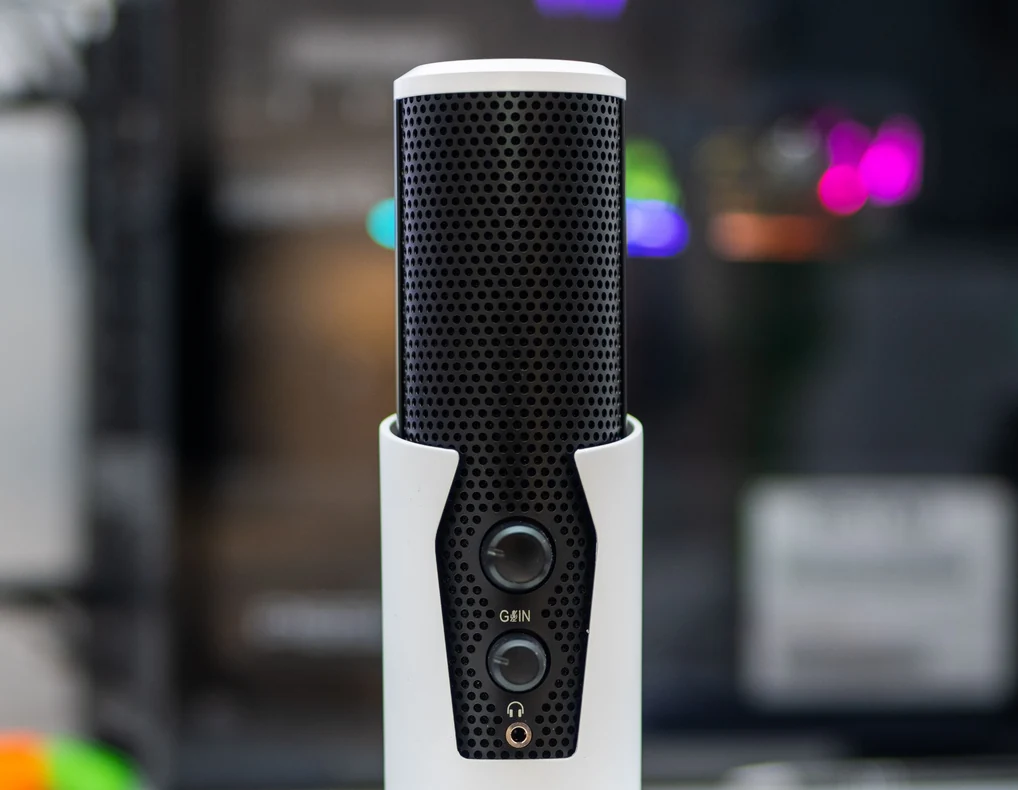
A compact USB desktop microphone is one of the simplest ways to add a dedicated microphone to a home-office computer setup.
The microphone normally sits on a small desktop stand and connects directly to a compatible computer.
Why Consider This Type?
It can suit you when:
- You want a straightforward computer connection
- The microphone stays at one workstation
- You regularly attend video calls
- You want a dedicated microphone instead of relying on the laptop’s built-in microphone
- You have room for a small stand
Keep the Stand in Mind
The microphone body may be compact, but the stand can determine how much desk space the complete setup uses.
Measure both the microphone and stand.
Also think about whether the stand needs to be repositioned frequently.
Look at the Controls
Useful controls may include:
- Mute
- Gain
- Headphone volume
- Monitoring controls
You do not necessarily need all of them.
For regular meetings, a physical mute button may be more useful than a large collection of less frequently used controls.
Position It Correctly
A microphone should remain close enough to your normal speaking position and be oriented according to the manufacturer’s recommendations.
Avoid placing it directly in the path of keyboard movement.
Best Use
This design is a good fit for everyday computer-based calls when you want a dedicated microphone without adding a complicated audio system.
2. Mini USB Microphone
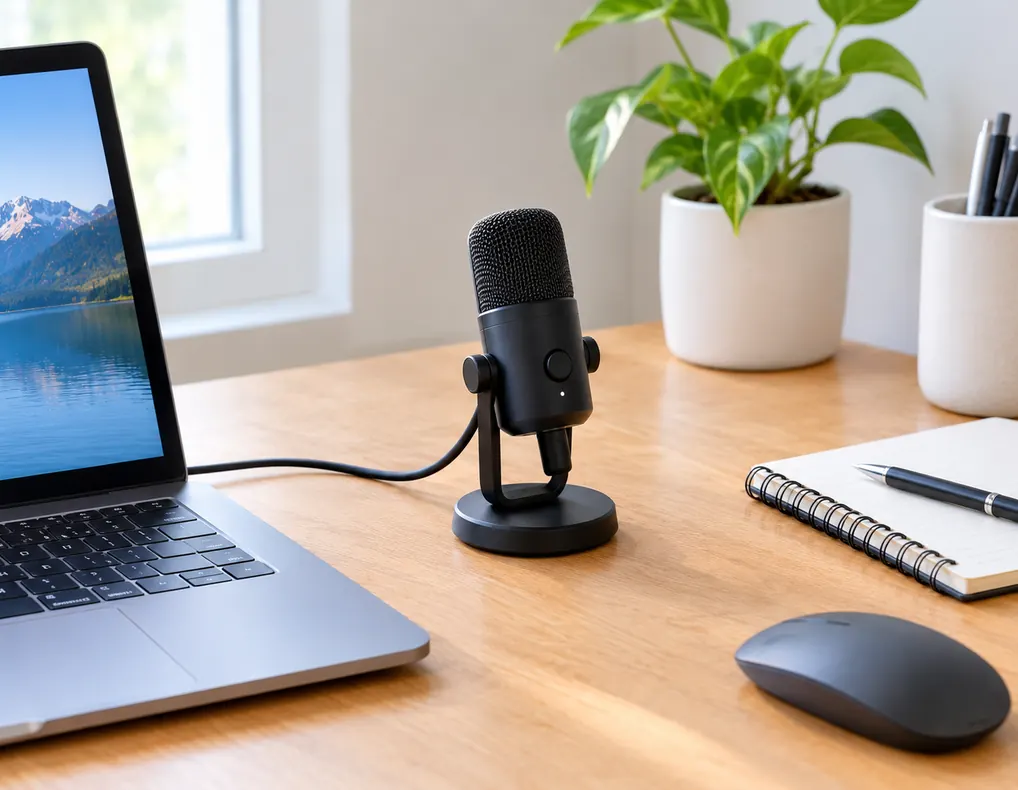
A mini USB microphone is designed for workspaces where desktop space is especially limited.
Its smaller body and stand can make it easier to fit beside a laptop or other essential equipment.
Why Choose a Mini Design?
This option may suit you when:
- Your desk is very small
- You need a portable microphone
- You want a simple USB setup
- You move between workspaces
- Storage space is limited
Watch the Height
A small microphone can become inconvenient when it sits too low.
You should be able to speak naturally without leaning toward the microphone.
Check whether the stand provides enough height or angle adjustment for your position.
Consider Vibrations
Because the microphone sits directly on the desk, tapping, typing, or moving nearby equipment can transfer mechanical noise through the surface.
Place it carefully and avoid unnecessary contact with the stand while speaking.
Check the Cable
Even the smallest USB microphone needs a practical cable route.
Make sure the cable can reach your computer without crossing the main keyboard or mouse area.
Best Use
A mini USB microphone can work well when reducing the physical footprint is more important than having extensive controls or advanced mounting options.
3. Compact Dynamic Microphone
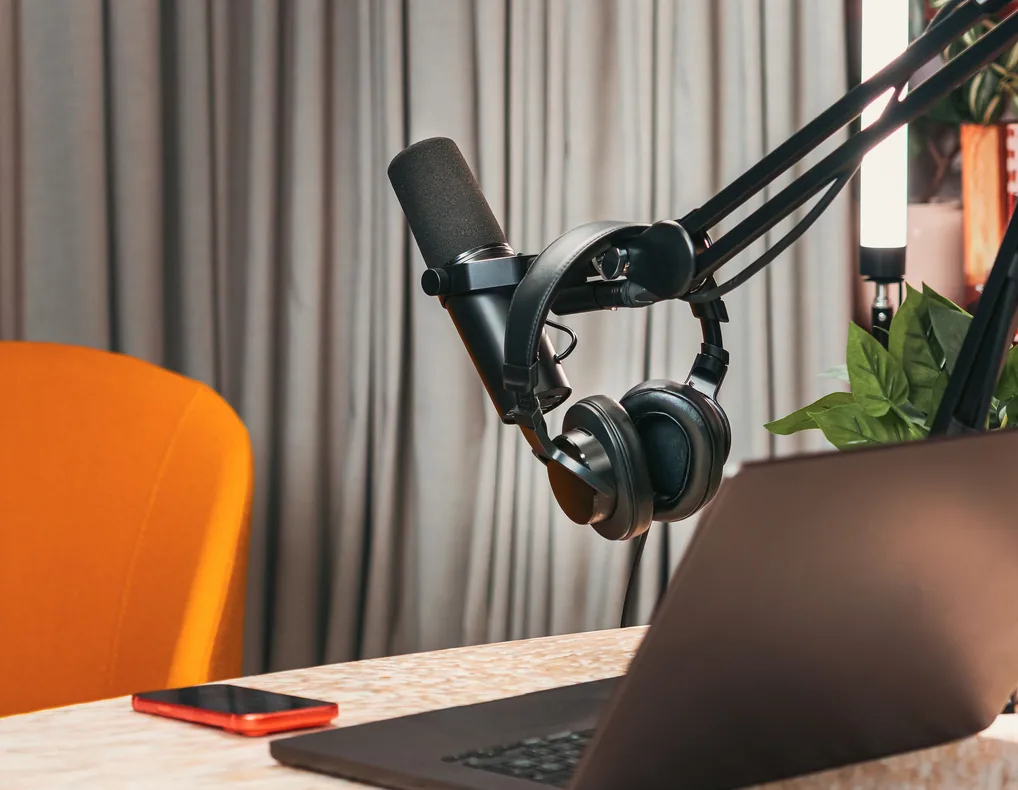
A compact dynamic microphone can be worth considering when your microphone will be positioned relatively close to you and the room contains some background sound.
Dynamic microphones are commonly used for speech and other vocal applications. Shure also notes that dynamic microphones can be useful in home recording environments where reducing unwanted room sound is important. (Shure)
Why Consider a Dynamic Design?
It may suit you when:
- You prefer close microphone placement
- The room is not completely quiet
- You want a microphone with a focused speaking position
- You do not need a large desktop condenser setup
- You regularly record voice or attend meetings
Position Matters
Do not place the microphone at the opposite end of the desk and expect the same result as a properly positioned close microphone.
Your distance from the microphone can affect the balance between direct voice and room sound.
USB or XLR?
Compact dynamic microphones can be available with different connection options.
USB can be simpler for a direct computer setup.
XLR may be more appropriate when you already have compatible audio equipment.
Think about the complete system rather than the microphone alone.
Best Use
This type can work well for users who want a close-positioned speech microphone and prefer a more focused setup.
4. Clip-On or Lavalier Microphone
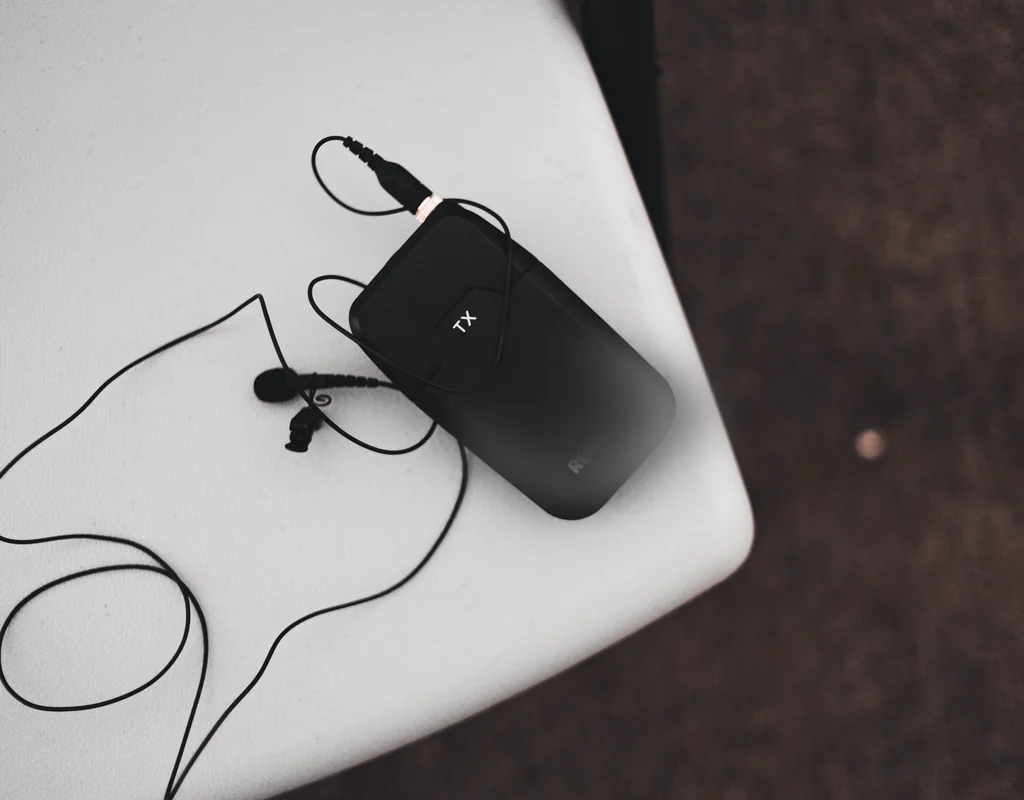
A clip-on or lavalier microphone approaches desk-space problems differently.
Instead of sitting on the desk, the microphone attaches to clothing or another suitable position close to the speaker.
This can leave most of the desktop available for other equipment.
Why Consider a Clip-On Design?
It may suit you when:
- You move during presentations
- You use a standing desk
- You sit away from the center of the desk
- You have almost no room for a microphone stand
- You want the microphone close to your voice
Main Advantage: Almost No Desk Footprint
The microphone itself does not need to occupy the central desktop area.
That can make a noticeable difference on a very small workstation.
Check Compatibility
Clip-on microphones can use different connectors and connection systems.
Before buying, confirm compatibility with your:
- Computer
- Phone
- Camera
- Wireless transmitter
- Audio interface
Do not assume that a small microphone will connect directly to every device.
Clothing Noise
Because a lavalier microphone sits near clothing, movement can introduce unwanted rubbing sounds.
Place the microphone carefully and secure the cable where practical.
Best Use
A clip-on microphone is particularly useful when mobility and minimal desk footprint are more important than having a traditional desktop microphone.
5. Low-Profile Boom-Mounted Microphone
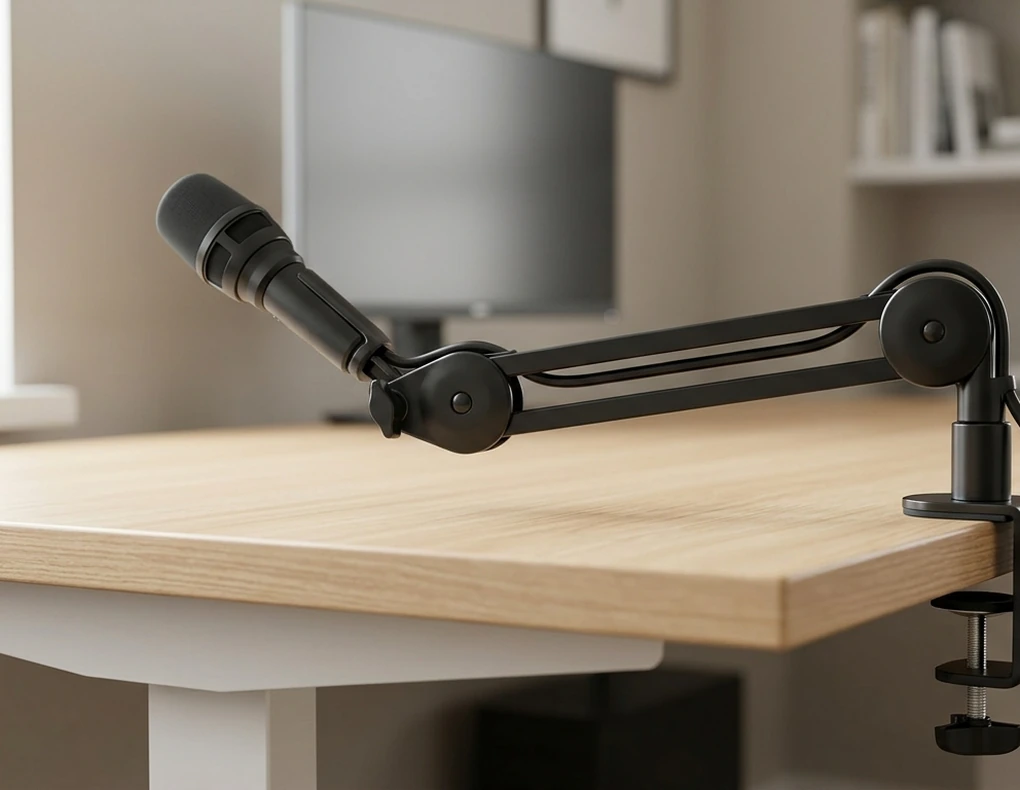
A low-profile boom-mounted microphone can be a practical choice when you use a microphone frequently but have little free desk surface.
Instead of using a large desktop stand, the microphone is mounted on an arm or boom positioned beside or above the working area.
Why Consider a Boom Setup?
This design may suit you when:
- You use a microphone every day
- Desk space is limited
- You want the microphone close to your mouth
- You need to move the microphone away when not in use
- You record or attend calls regularly
The Mount Matters
Do not measure only the microphone.
Check:
- Clamp size
- Desk-edge space
- Arm reach
- Vertical clearance
- Cable routing
- Range of movement
A boom arm can save central desk space but still need a suitable mounting point.
Check Desk Compatibility
Some clamp-mounted arms require a particular desk thickness or edge shape.
Measure the desk before buying.
Also make sure nearby shelves, drawers, or walls will not restrict the arm’s movement.
Move It When Finished
One benefit of a boom-mounted microphone is the ability to move it away from the main work area when you are done.
That can be especially useful when your desk has to serve multiple purposes.
Best Use
This type is well suited to frequent microphone users who want the microphone close without keeping a full desktop stand in the main working zone.
Condenser vs. Dynamic Microphones
Both microphone types can work in a home office, but they may suit different setups.
Condenser Microphones
A condenser microphone can capture detailed sound and may be useful when the recording environment is reasonably controlled.
Depending on the microphone and room, its sensitivity may also make room sounds more noticeable.
Dynamic Microphones
A dynamic microphone can be useful for close-positioned speech and environments where you want to place more emphasis on the speaker than the surrounding room.
Shure’s home-recording guidance specifically discusses dynamic microphones as a practical option when homes are not completely quiet. (Shure)
Neither type is automatically right for every room.
Your microphone position, room acoustics, speaking distance, and gain settings all contribute to the final result.
What Is a Cardioid Pickup Pattern?
A cardioid pickup pattern is directional.
It is generally most sensitive toward the front of the microphone and less sensitive toward the rear. This can help when the speaker is positioned in front of the microphone and unwanted sound comes from other directions. (Shure)
For a small office, think about where the main sound sources are.
For example, if a keyboard, fan, or other noise source is positioned in a particular direction, microphone orientation can affect how much of that sound is captured.
However, a cardioid microphone does not make a noisy room silent.
It simply changes the microphone’s sensitivity according to direction.
Good placement remains important.
How Close Should a Desk Microphone Be?
There is no universal distance that works for every microphone.
The appropriate position depends on the microphone design, pickup pattern, speaking volume, room, and gain settings.
The main goal is to establish a comfortable speaking position.
If the microphone is too far away, you may need more gain and can end up capturing more room sound.
If it is extremely close, breath and plosive sounds can become more noticeable.
Start with the manufacturer’s guidance and adjust gradually while listening to the result.
How to Reduce Keyboard and Desk Noise
Small desks can make vibration problems more noticeable because the microphone and keyboard are often close together.
Typing, tapping, moving a notebook, or adjusting equipment can transfer sound through the air or through the desk itself.
Try These Changes
Position the microphone toward your speaking area rather than directly toward the keyboard.
Keep the microphone at a comfortable distance.
Avoid tapping the desk while speaking.
If the microphone supports a suitable shock-mounting system, it may help reduce some mechanical vibration transfer.
A directional microphone can also help when it is correctly positioned relative to unwanted sound sources.
For broader ideas about creating a quieter workspace, see our Small Home Office Noise Reduction Ideas.
How to Position a Microphone for Video Calls
For regular meetings, the microphone should be easy to reach and positioned so it does not interfere with your screen or camera.
A practical setup usually means:
- Microphone aimed appropriately
- Stable mounting
- Comfortable speaking distance
- Cable kept out of the main work area
- Controls easy to reach
- Microphone clear of the webcam’s view
Think about the camera and microphone together.
A microphone that blocks part of your face or covers an important part of the screen is not ideally positioned.
For the camera side of your setup, see our Best Webcams for Home Office Video Calls on a Small Desk guide.
Is a Physical Mute Button Worth It?
A physical mute button can be convenient during online meetings.
You may need to mute quickly when there is unexpected background activity, someone enters the room, or you need to speak away from the computer.
A physical control can be faster than opening software settings.
However, it is not an essential feature for everyone.
If you rarely mute your microphone or prefer using the meeting application’s controls, another model may provide the features you need without adding extra controls.
Do You Need Headphone Monitoring?
Some microphones provide a headphone output for direct monitoring.
This lets you listen to the microphone signal through headphones without relying entirely on the computer’s speaker output.
Monitoring can be useful for:
- Voice recording
- Calls
- Presentations
- Streaming
- Audio editing
For simple occasional meetings, it may not be necessary.
If headphones are already an important part of your work setup, however, monitoring can be a useful addition.
Our Best Noise-Canceling Headphones for Working From Home guide covers headphones separately.
USB vs. XLR Microphones
Connection type can determine how simple or expandable your setup becomes.
USB
USB is convenient when you want a microphone that connects directly to a compatible computer.
It can suit a straightforward home-office setup without additional audio hardware.
XLR
XLR is common in more expandable audio systems and may require an audio interface, mixer, or other compatible equipment.
It can make sense for users who already have that equipment.
Combined Connections
Some microphones offer more than one connection method.
This can provide flexibility, but additional connectivity is not automatically useful.
Choose the system that matches your actual needs.
Do You Need a Pop Filter?
A pop filter or windscreen can help reduce certain plosive sounds created when speaking.
Sounds associated with strong bursts of air can become more noticeable when a microphone is positioned close to the mouth.
Some microphones include built-in protection.
Before buying another accessory, check whether the microphone already provides suitable protection.
For a compact workspace, fewer unnecessary accessories can also make the setup easier to manage.
Do You Need a Shock Mount?
A shock mount can help reduce mechanical vibration reaching a microphone.
This can be useful if the microphone is mounted on a desk or boom arm and nearby movement creates noticeable vibration.
For example, adjusting a keyboard, moving a notebook, or touching the desk can sometimes transfer vibration into the microphone.
A shock mount is not essential for every setup.
Consider one when mechanical noise is actually affecting your recordings or calls.
How to Fit a Microphone Into a Very Small Desk
When space is extremely limited, decide where the microphone will go before deciding which model to buy.
Possible positions include:
Rear Desk Area
A small microphone can sit behind the keyboard if it remains close enough and does not interfere with the monitor.
Desk Side
A side position can preserve the central work area.
Desk Edge
A boom arm can use the edge rather than the middle of the desk.
Nearby Shelf
A shelf can provide an alternative location when the microphone remains at a suitable speaking distance.
Clip-On Position
A lavalier microphone can remove the microphone from the desktop entirely.
The most useful option depends on how often you move and how much desk space is available.
How to Manage a Microphone Cable
A microphone cable can become one of the easiest ways to create clutter on a small desk.
Plan the route before connecting the microphone.
Keep the cable:
- Away from the mouse area
- Away from keyboard movement
- Along the rear edge when practical
- Free from unnecessary tension
- Short enough to avoid large loops
For wider cable-routing solutions, see our Best Cable Management Solutions for Small Desks guide.
The aim is simply to keep the microphone connection out of the main working zone.
Microphone vs. Built-In Laptop Microphone
A separate microphone is optional.
A laptop’s built-in microphone may already be sufficient for casual meetings.
A dedicated microphone becomes more useful when you want:
- Different microphone placement
- More control over pickup direction
- A microphone closer to your speaking position
- Physical mute or gain controls
- A dedicated recording setup
Buying a separate microphone does not automatically guarantee a better result.
Room sound, placement, software settings, and the microphone itself all matter.
Microphone vs. Headset Microphone
A headset microphone and a standalone microphone take different approaches to voice capture.
Headset Microphone
A headset keeps the microphone close to your mouth and combines listening and speaking equipment.
It can be useful when you want very little desk equipment.
Standalone Microphone
A standalone microphone gives you more flexibility in placement and mounting.
The trade-off is that it becomes another component that needs space.
For a small home office, choose according to whether you prefer the simplicity of an all-in-one headset or the flexibility of a dedicated microphone setup.
How to Choose the Right Microphone for a Noisy Room
A noisy room does not automatically require an expensive microphone.
Start by identifying the main unwanted sounds.
These might include:
- Desk fans
- Air conditioners
- Traffic
- Keyboard noise
- Nearby conversations
- Room echo
Then consider placement.
A directional microphone can be positioned to favor your voice and reduce sensitivity toward certain other directions. (Shure)
Keep the microphone reasonably close to you, avoid unnecessary desk vibration, and position major noise sources away from the microphone’s more sensitive area where practical.
For additional room-focused solutions, see our Small Home Office Noise Reduction Ideas guide.
What Microphone Features Are Worth Paying For?
What Microphone Features Are Worth Paying For?
When comparing the best compact microphones for small home offices, focus on the features that match your actual workspace and communication needs.
The right features depend on your work.
The right features depend on your work.
For Everyday Video Calls
Prioritize:
- Clear voice capture
- USB connectivity
- Compact mounting
- Physical mute, if useful
- Easy controls
For a Quiet Room
Prioritize:
- Comfortable voice capture
- Appropriate pickup pattern
- Adjustable positioning
- Simple monitoring options
For a Noisier Room
Prioritize:
- Suitable directional pickup
- Close microphone placement
- Stable mounting
- Sensible room positioning
For Presentations
Prioritize:
- Clip-on or portable design
- Reliable compatibility
- Minimal desk footprint
For Frequent Recording
Prioritize:
- Comfortable mounting
- Appropriate microphone type
- Monitoring
- Suitable connection
- Easy positioning
You do not need every feature in one microphone.
Common Microphone Buying Mistakes
Choosing the Smallest Microphone Without Checking the Stand
The mounting system can use more space than the microphone body.
Placing the Microphone Too Far Away
Distance can affect voice level and the amount of room sound entering the recording.
Treating Cardioid as Noise Cancellation
A directional pickup pattern does not remove all background sound.
Buying XLR Without Planning the Rest of the System
An XLR microphone may need additional compatible equipment.
Ignoring Desk-Edge Requirements
Boom-mounted options need an appropriate mounting point.
Forgetting Cable Length
A cable that is too short can restrict placement.
A very long cable can create unnecessary loops.
Blocking the Webcam
Check the microphone’s position relative to the camera before finalizing the setup.
Buying Features You Will Not Use
More controls do not automatically make a microphone more useful.
Ignoring Room Acoustics
Microphone selection cannot completely compensate for a room with strong echo or constant unwanted noise.
Choosing Only by Product Size
A tiny microphone may be difficult to position or readjust.
Ignoring Compatibility
Always confirm compatibility with your computer or other intended device.
How to Choose the Right Compact Microphone
A simple process can narrow the options quickly.
Step 1: Decide How You Will Use It
Are you mainly attending meetings, recording voice, presenting, streaming, or doing several of these?
Step 2: Decide Where It Will Go
Desktop, desk edge, shelf, or clothing?
Step 3: Measure the Space
Include the microphone, stand or mount, cable route, and movement area.
Step 4: Consider Your Room
Identify fans, air conditioners, traffic, conversations, or other sounds that may affect your microphone.
Step 5: Choose the Form Factor
Select a desktop, mini, dynamic, clip-on, or boom-mounted approach according to your routine.
Step 6: Choose the Connection
USB may be appropriate for a simple computer setup. XLR may make more sense when compatible audio equipment is already part of your system.
Step 7: Select Only Useful Controls
Mute, gain, monitoring, and other features should solve an actual problem for you.
Step 8: Check Compatibility
Confirm the microphone works with the devices and software you plan to use.
Step 9: Calculate the Complete Setup
Include any required stand, boom arm, cable, adapter, pop filter, or other necessary accessory.
This process helps prevent a common mistake: buying a microphone that looks compact but becomes inconvenient once the complete setup is assembled.
Quick Buying Checklist
Before buying a compact microphone for your home office, check:
- Microphone size
- Stand or mounting footprint
- Desk-edge requirements
- Pickup pattern
- Dynamic or condenser design
- USB connectivity
- XLR connectivity, if required
- Mute control
- Gain control
- Headphone monitoring
- Cable length
- Cable routing
- Room noise
- Recommended placement
- Computer compatibility
- Required accessories
- Manufacturer specifications
The right microphone should fit both your voice needs and the physical limits of your workspace.
FAQs
Are compact microphones good for small home offices?
They can be useful when you want dedicated voice capture without giving up much desk space. Choose according to the microphone’s form factor, mounting method, room conditions, and intended use.
Which type of microphone is best for video calls?
There is no single design for every user. A compact USB desktop microphone can be simple, while a clip-on or boom-mounted design may make more sense when desk space or movement is important.
Is a USB microphone good for a home office?
A USB microphone can be convenient when you want a direct computer connection. Check the manufacturer’s compatibility and connection requirements.
What is the difference between dynamic and condenser microphones?
They use different microphone technologies and can behave differently in a room. Your environment, placement, and intended use should influence the choice.
What is a cardioid microphone?
A cardioid microphone uses a directional pickup pattern that is generally more sensitive toward the front and less sensitive toward the rear. (Shure)
Does a cardioid microphone eliminate background noise?
No. It can reduce sensitivity to sound arriving from certain directions, but background noise can still be captured depending on its location, volume, and microphone placement.
Are mini USB microphones useful?
They can be useful when desk space is very limited and you want a simple computer connection. Check whether the included stand provides a comfortable speaking position.
Is a dynamic microphone suitable for a noisy home office?
It can be worth considering when the microphone is positioned appropriately close to the speaker and the room contains unwanted sound. Good placement remains important.
Are clip-on microphones good for meetings?
They can be useful when you move during calls or have very little desk space. Check compatibility with the computer, phone, camera, or wireless system you plan to use.
Do I need an XLR microphone?
Not necessarily. XLR can be useful when you already have compatible audio equipment. For a simple computer setup, USB may be enough.
Do USB microphones need an audio interface?
A USB microphone designed for direct computer connection generally does not need a separate audio interface for that connection. Always check the manufacturer’s requirements.
Should a microphone have a mute button?
A physical mute button can be convenient for frequent meetings, but it is optional if you prefer using software controls.
Do I need headphone monitoring?
Not everyone does. It can be useful for recording and frequent calls, while occasional users may not need it.
Where should I place a microphone on a small desk?
Possible positions include a rear desk area, side position, desk edge, or nearby shelf. Choose a location that keeps the microphone at a comfortable speaking distance without interfering with your workspace.
Can a boom arm save desk space?
It can move the microphone away from the central desktop area, but the arm and mounting clamp still require suitable space.
Do I need a shock mount?
Not necessarily. A shock mount can help reduce some mechanical vibration, but its value depends on your mounting setup and how much vibration reaches the microphone.
Do I need a pop filter?
Not always. Some microphones already include protection against plosive sounds. Check the microphone’s design before buying an additional accessory.
Can a microphone improve laptop call quality?
A dedicated microphone can give you more control over microphone position and capture, but the result depends on the microphone, room, placement, and software.
Should I use a microphone if my laptop microphone works?
Not necessarily. A separate microphone becomes more useful when you want different placement, physical controls, or a dedicated voice setup.
Can a microphone fit a very small desk?
Yes. Mini USB microphones, clip-on microphones, and boom-mounted designs can all be considered when desktop space is limited.
What should I check before buying a compact microphone?
When choosing the best compact microphones for small home offices, start with your intended use and placement. Then compare microphone type, pickup pattern, connection, mounting requirements, controls, cable needs, compatibility, and the complete footprint.
Final Thoughts
The best compact microphones for small home offices are not necessarily the smallest microphones or the most feature-heavy models.
The right choice depends on how you communicate, how much room you have, and how controlled your workspace is.
A compact USB desktop microphone can provide a straightforward setup for everyday calls. A mini USB microphone may suit a very small desk. A compact dynamic microphone can work well for a close-positioned speech setup, while a clip-on microphone keeps the desktop largely free. For frequent users, a low-profile boom-mounted microphone can move the microphone away from the main working surface when it is mounted appropriately.
Placement is just as important as the microphone itself.
Check the speaking distance, pickup direction, stand or mount, cable route, and relationship between the microphone and webcam.
If your room is noisy, identify the main unwanted sound sources before buying. Directional pickup can help when the microphone is oriented correctly, but it is not a substitute for sensible room management. (Shure)
Before purchasing, compare the complete setup rather than the microphone body alone. Include the stand, boom arm, cable, connection requirements, and any accessories you actually need.
For a small home office, a successful microphone setup should do two things at the same time: provide a practical way to capture your voice and leave enough workspace for the equipment you use every day.
For related home-office communication and comfort ideas, explore our Best Webcams for Home Office Video Calls on a Small Desk, Best Noise-Canceling Headphones for Working From Home, Small Home Office Noise Reduction Ideas, and Best Cable Management Solutions for Small Desks guides.