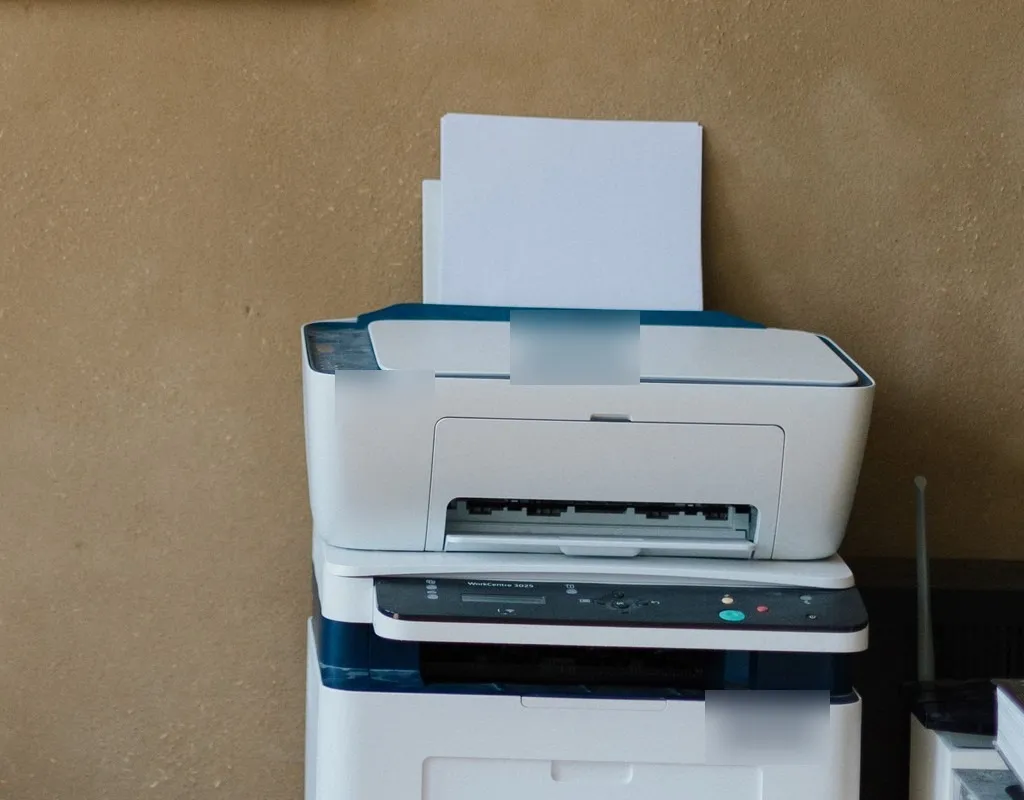
A small home office printer setup should make printing easy without allowing the printer to take over your most valuable desk space. In a compact workspace, even one large device can make the desk feel crowded.
The good news is that you do not always need a larger desk. A better printer location, a separate surface, and a little planning can create a cleaner and more practical workspace.
If you are setting up a small office for remote work, start by deciding how often you actually use your printer and where it fits naturally into your workflow.
Here are seven practical ways to create a space-saving printer setup without making your small office harder to use.
Affiliate Disclosure: This post contains affiliate links. If you make a purchase through one of these links, we may earn a small commission at no extra cost to you.
1. Decide How Often You Actually Use the Printer
Before choosing a printer location, think about your actual printing habits. If you print documents several times a day, your printer should be easy to reach. Moving it too far away may save desk space but create unnecessary trips every time you need a document.
If you only print occasionally, however, the printer does not necessarily need to occupy your main desk. For example, an occasional-use printer could sit on:
- A narrow side table
- A small printer stand
- A nearby cabinet
- A sturdy shelf
- A separate workspace surface
This simple decision can make a big difference in a compact office. The best printer setup for a small home office is not necessarily the setup that puts the printer closest to your chair. It is the setup that balances accessibility with the amount of space the printer occupies.
2. Keep the Main Desk Surface Clear
One of the easiest ways to improve a small home office is to stop treating the main desk as the storage area for every device. A printer can consume a surprisingly large portion of a compact desk. Once you add a monitor, keyboard, mouse, notebook, laptop and other accessories, there may be very little usable workspace left.
Instead, consider moving the printer away from the primary working surface. This is especially useful if you use your desk for writing, studying, video calls or working with documents. A clean desk can also make it easier to access the equipment you use most frequently.
If you are working on other small-desk improvements, you can also read our guide to best compact keyboards for small desks for another way to free up valuable desk space.
3. Choose a Location With Enough Clearance
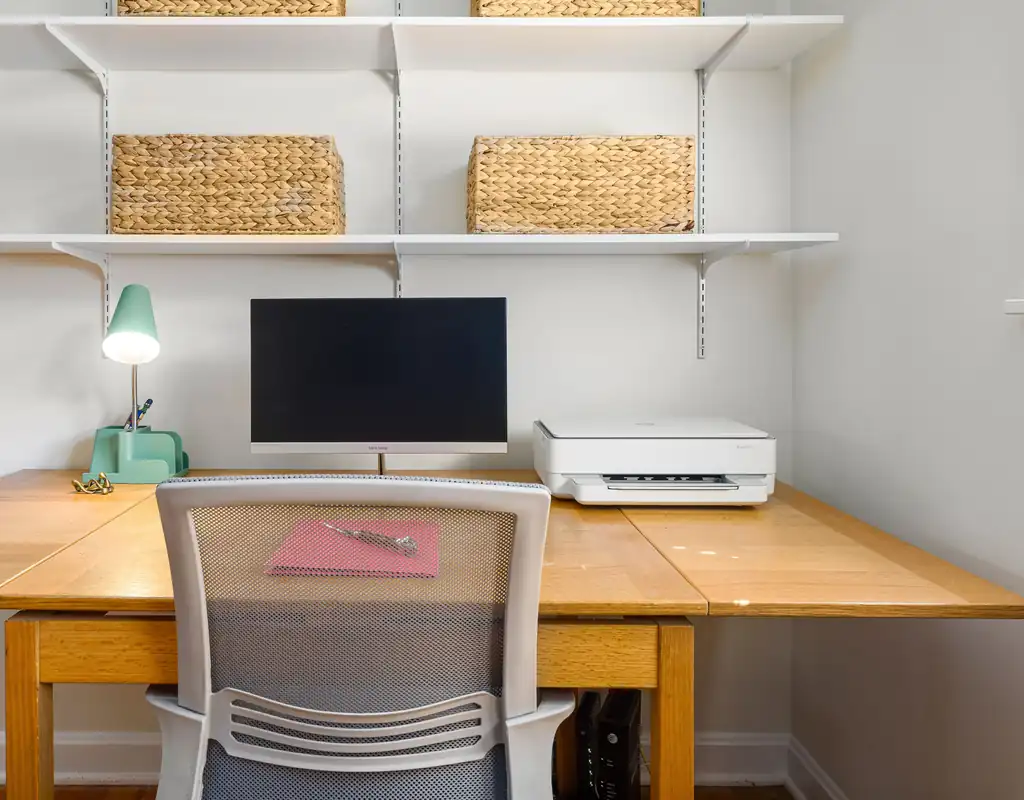
When deciding where to put a printer in a small office, do not look only at the width and depth of the printer. You also need to consider the space required to actually use it.
Depending on the printer design, you may need room for:
- Opening the paper tray
- Removing printed pages
- Replacing paper
- Accessing controls
- Opening cartridge or toner compartments
- Connecting or managing cables
The printer should sit on a stable, level surface that can support its weight. Avoid placing it somewhere that blocks a walkway or makes it difficult to reach the controls. You should also check the manufacturer’s requirements for ventilation and clearance before placing the printer tightly against walls or other equipment
If you need a compact printer that fits better into a limited workspace, you can place your relevant affiliate product link here:
[Check Price — Compact Printer]
4. Use a Separate Printer Surface
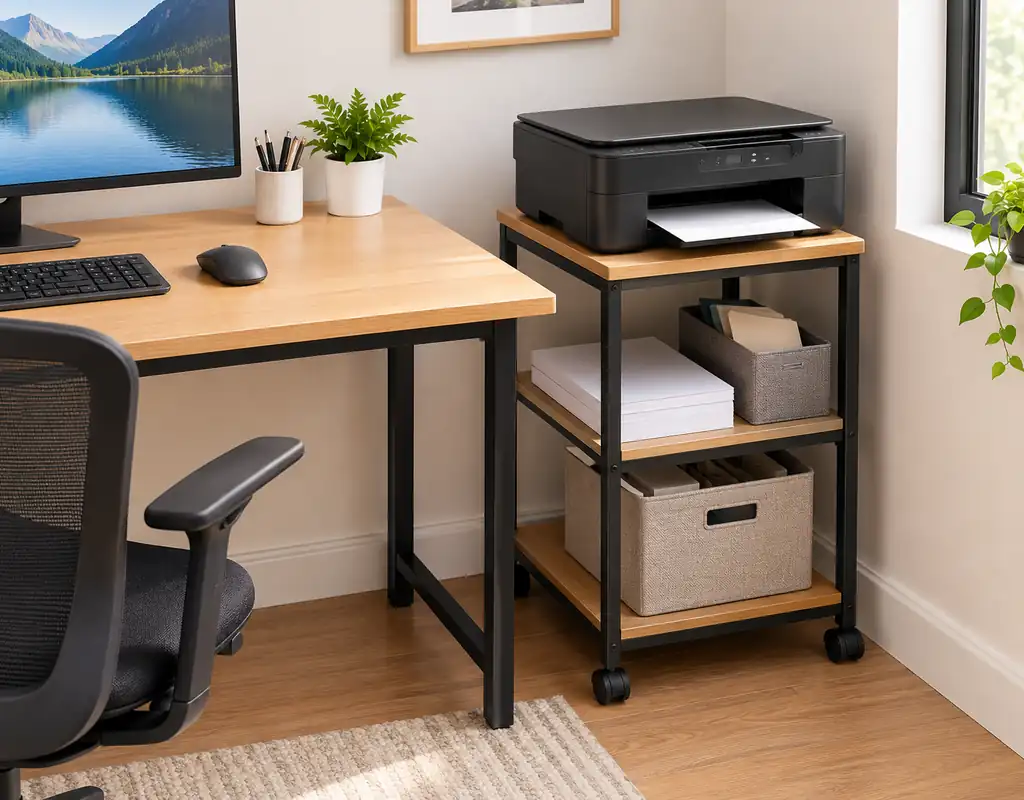
A separate surface is often one of the simplest solutions for a small office. Instead of keeping the printer directly on your desk, consider a compact surface beside the desk.
Possible options include:
- Narrow printer stand
- Small side table
- Compact cabinet
- Rolling utility cart
- Dedicated printer shelf
The important thing is that the surface should be stable and appropriately sized. A separate printer surface can also make the workspace feel more intentional because the printer has its own location instead of competing with your keyboard and monitor.
For very small rooms, a narrow surface beside the desk can be especially useful because it uses vertical or secondary floor space rather than the primary working area.
Check Price — Compact Printer Stand
5. Place the Printer Close to Your Workflow
Saving desk space is useful, but convenience still matters. A printer that is technically out of the way but located across the room may become frustrating if you print frequently.
Think about your normal workflow:
Computer → Print → Collect document → Continue working
Try to position the printer so that this process remains simple. For example, a printer beside the desk may be better than one placed behind your chair or inside another part of the room.
If your printer supports wireless printing, you may have more flexibility because you do not necessarily need to keep the printer physically beside your computer. That can be particularly helpful when designing a compact printer setup.
For more small-office equipment ideas, you can also explore our Work-From-Home Tech category.
6. Plan the Power and Cable Position
Printer placement should not be decided only by furniture. Power and cable routing matter too.
Before choosing a location, check:
- Where the nearest power outlet is
- How long the printer’s power cable is
- Whether a USB connection is required
- Whether your printer uses Wi-Fi
- Whether cables could cross a walkway
- Whether the cable can remain tucked safely against the wall
A printer placed in a perfect location can still create problems if its cable stretches across the floor. For a small workspace, keeping cables close to the wall usually creates a cleaner setup.
This is also a good reason to plan printer placement before buying a stand or side table. You want the entire setup to work together rather than solving one problem and creating another.
If cable clutter is another issue in your office, see our guide to Best Cable Management Solutions for Small Desks.
7. Keep Frequently Used Supplies Nearby
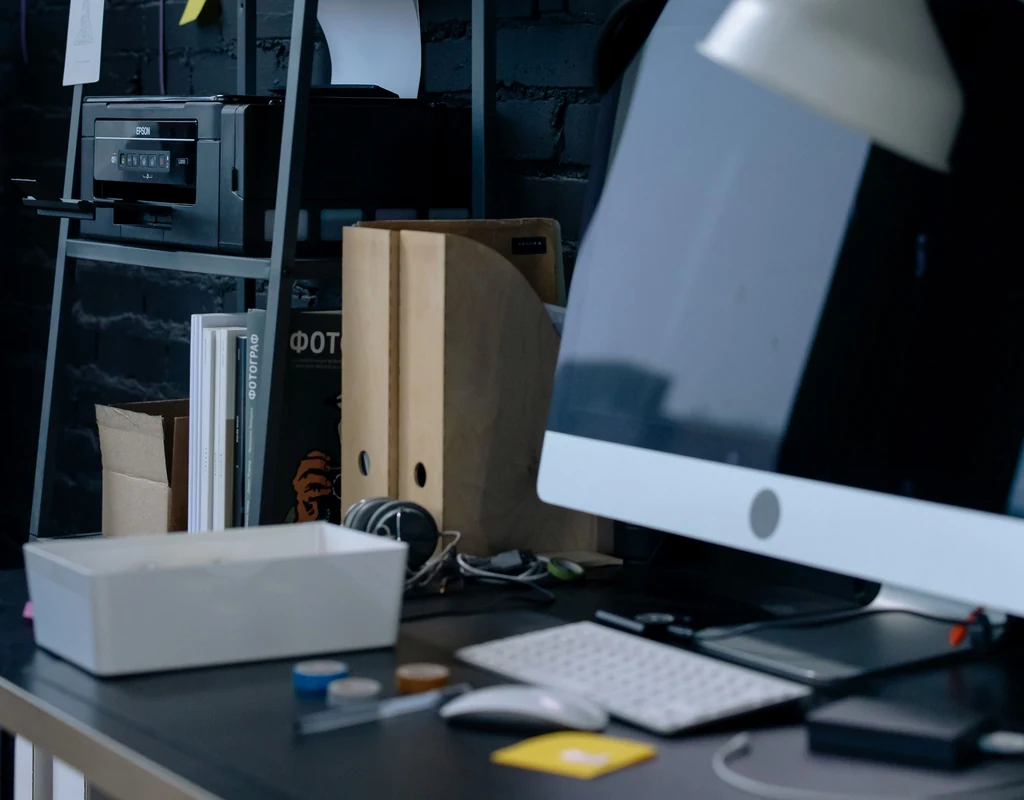
Paper, replacement ink or toner, envelopes and other printing supplies should have a logical place. However, that does not mean everything needs to sit directly beside the printer. If you keep supplies on the printer itself, the area can quickly become cluttered.
Instead, consider using:
- A small drawer
- A nearby shelf
- A compact paper organizer
- A cabinet compartment
- A dedicated document holder
The goal is simple: keep frequently used supplies close enough to access without allowing them to spread across your desk. This approach is different from general office storage. Here, the focus is specifically on creating a practical printing zone around the printer.
If you are recommending a relevant paper organizer, printer tray or compact supply organizer:
How to Choose the Best Printer Location
There is no single perfect location for every small office. The best location depends on your room, desk, printer size and printing habits.
Before deciding, consider these five questions:
- How often do I print?
- How much desk space does the printer use?
- Can I easily reach the printer?
- Can I safely manage the power cable?
- Is there enough clearance to use the printer properly?
If you answer these questions first, it becomes much easier to decide between keeping the printer on the desk or moving it somewhere else.
Printer on the Desk vs. Separate Surface
Both options can work.
Printer on the desk
Keeping the printer on the desk makes sense when:
- You print frequently
- Your desk is large enough
- The printer is compact
- You need very quick access
The downside is that the printer permanently occupies part of your main work surface.
Printer on a separate surface
A separate surface is usually better when:
- Your desk is very small
- You print occasionally
- You have a nearby cabinet or side table
- You want more usable keyboard and writing space
For many compact offices, moving the printer away from the main desk is one of the easiest improvements.
What Size Printer Works Best for a Small Office?
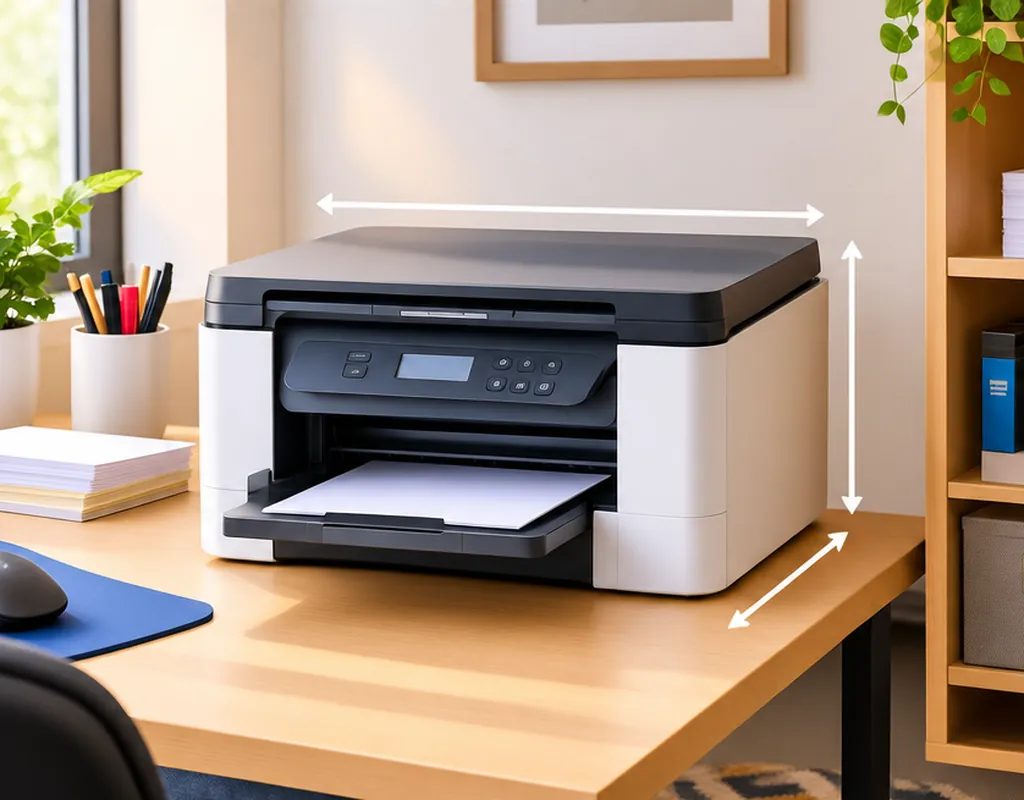
A compact printer is generally easier to position than a large multifunction machine, but size should not be the only consideration.
Before buying, check the printer’s:
- Width
- Depth
- Height
- Paper tray position
- Output tray requirements
- Cable connections
- Access panels
Remember that the printer’s listed dimensions may not represent the total space you need while operating it. For example, a printer may physically fit on a narrow shelf but become difficult to use when its paper tray or output section needs to be opened. So measure the usable space, not just the empty shelf.
Common Small Office Printer Setup Mistakes
Even a good printer can become inconvenient if the placement is poorly planned.
Putting the printer in the middle of the desk
This uses valuable workspace that could be used for your keyboard, laptop or paperwork.
Ignoring printer clearance
A printer may fit physically but still be difficult to operate if there is not enough room around it.
Running cables across a walkway
This can make a small room feel even more cramped.
Putting the printer too far away
Saving space is not useful if you have to walk across the room every time you print.
Buying a stand without measuring
Always measure both the printer and the available surface before purchasing a printer stand.
Using an unstable surface
A printer should sit on a sturdy, level surface that can safely support it.
Small Home Office Printer Setup Checklist
Before finalizing your setup, check the following:
- Printer dimensions measured
- Available surface measured
- Enough operating clearance
- Power outlet nearby
- Cables safely routed
- Paper easily accessible
- Printed pages easy to collect
- Printer does not block movement
- Main desk still has enough working space
If all of these points work, you probably have a practical setup.
FAQs
Where should I put a printer in a small home office?
A printer can sit on a compact desk, narrow printer stand, side table or nearby cabinet. The best location depends on how often you print and how much space you have available.
Should a printer be on the desk?
Not necessarily. If your desk is small and you print occasionally, moving the printer to a separate nearby surface can give you more usable workspace.
Can I put a printer on a shelf?
Yes, provided the shelf is stable, large enough and suitable for the printer’s weight and operating clearance.
How can I save desk space with a printer?
The simplest solution is often to move the printer away from the main work surface and place it on a separate compact stand, shelf or nearby cabinet.
Is a wireless printer better for a small office?
Wireless printing can give you more flexibility with placement because the printer does not always need to be physically connected to your computer. However, you still need a suitable power source and enough room to operate the printer.
Final Thoughts
A good small home office printer setup is less about finding the smallest possible printer and more about using your available space intelligently.
Start by looking at how often you print. Then consider whether the printer really needs to occupy your main desk. For many compact workspaces, a separate printer surface can free up valuable desk space while keeping the printer close enough to remain convenient.
Measure the printer, check the required clearance, plan the power and cable position, and keep printing supplies organized nearby.
If you are continuing to build a complete compact workspace, explore our Small Home Office guides for more space-saving ideas. You can also visit our Buying Guides section for more product comparisons and practical buying advice.