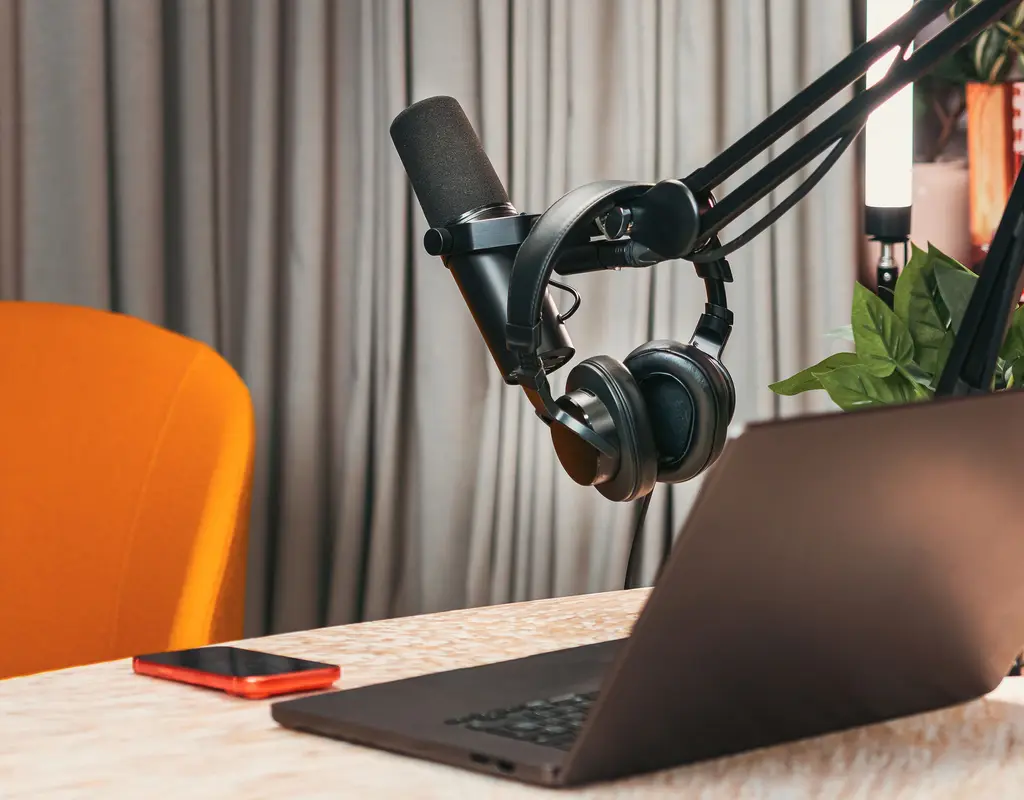
Working from home is convenient, but a bare-bones laptop setup rarely gives you the comfort, audio quality, lighting, or flexibility a full working day actually needs. A weak webcam makes video calls look flat, a laptop mic tends to pick up every background noise, and a screen sitting too low can leave your neck and shoulders tense by the afternoon.
The good news: fixing this doesn’t require an expensive office overhaul. A handful of well-chosen accessories can make remote work noticeably more comfortable — even more so if you’re working with limited desk space, where choosing the right desk in the first place already makes a difference.
Where Should You Start?
You don’t need to buy everything at once. The smarter approach is figuring out which part of your current setup actually bothers you the most, and fixing that first — for most remote workers, that usually comes down to lighting, audio, input comfort, or laptop height.
Here are five upgrades worth considering, roughly in the order most people notice the problem.
1. A Dedicated Webcam
Built-in laptop cameras are fine for the occasional call, but regular video meetings tend to expose their limits fast. Most laptop webcams run small sensors that struggle the moment your room isn’t brightly lit, and their fixed position often creates an unflattering angle — especially if your laptop sits low on the desk. A separate webcam fixes both problems at once, since you can position it wherever gives you the best angle.
When comparing options, 1080p is genuinely enough for most meetings — 4K rarely adds anything useful for everyday calls. Low-light performance matters more than resolution if you tend to work evenings or in a dim room, and a wider field of view helps for presentations but can work against you if you’d rather keep your background out of frame. Autofocus and simple mounting round out the list — small things, but they add up to a webcam you don’t have to fuss with every time you sit down.
2. A USB Microphone or a Decent Headset
Audio quality is one of the cheapest wins available. People tend to forgive an average video image far more easily than they forgive constantly asking “sorry, can you repeat that?” — muffled or noisy audio gets frustrating fast, for everyone on the call.
A USB microphone gets you a noticeably more focused voice recording without needing an audio interface or any complicated setup — plug in and go. Look for a cardioid pickup pattern, which favors sound coming from directly in front of it (useful for one person talking at a desk), plus a physical mute button if you’re in back-to-back meetings. If your desk space is tight, a compact mic beats a large studio-style boom arm every time.
That said, if you’re only in occasional meetings, a good headset probably covers you — a dedicated mic starts paying off once you’re spending several hours a day on calls or presentations.
3. Better Lighting for Your Workspace
Lighting is the thing people skip past when setting up a home office, and it shows. A room can look perfectly fine in person while looking washed out or shadowy on camera — overhead light casts shadows across your face, and a bright window behind you turns you into a silhouette.
You don’t need a full studio lighting kit. A small LED panel or compact desk light placed in front of you usually makes a surprisingly noticeable difference. Worth checking for: adjustable brightness (so you’re not stuck with one setting regardless of time of day), adjustable color temperature (to match the room instead of clashing with it), and an angle you can actually point at your face rather than the ceiling.
4. A Mouse and Keyboard That Actually Feel Good
Your mouse and keyboard get more daily use than almost anything else on your desk, so comfort deserves more weight than it usually gets. A keyboard that feels cramped or a mouse shape that doesn’t sit right in your hand turns into a real annoyance over a long session, even if neither one seemed like a big deal in the store.
Wireless options cut down on desk clutter, which matters more the smaller your desk is. Beyond that, it’s mostly personal — some people want programmable buttons for repetitive tasks, others just want quiet keys that don’t disturb anyone nearby. There isn’t a universal “best” here; comfort and how much desk space you have should outweigh chasing the longest feature list. If you want help comparing specific options, our buying guides cover a few categories in more depth.
5. A Laptop Stand or Monitor Riser
If your laptop is your main computer, its screen is probably sitting lower than what’s comfortable for extended viewing. A stand raises it closer to eye level and, depending on the design, frees up a bit of desk space in the process.
One catch: raising the laptop also raises its built-in keyboard out of a comfortable typing position, so most people end up pairing a stand with an external keyboard and mouse anyway. When choosing one, adjustable height gives you more control, and an open design (rather than a solid platform) helps with airflow around the laptop. For a small desk, a compact or foldable stand is worth prioritizing over a bulkier one — our guide to monitor stands for small desks goes into this in more detail if you’re using an external monitor instead of just a laptop.
Upgrading Without Adding Clutter
More tech doesn’t automatically mean a better workspace — in a small room, too many accessories just makes the desk feel crowded. Before buying anything, it’s worth asking where exactly it’ll sit and whether you actually need it.
A compact USB mic usually beats a large microphone arm on a small desk. A small LED panel typically makes more sense than a full lighting rig. A foldable laptop stand is easier to tuck away if the desk needs to double as something else during the day — a point we cover in more depth in our guide to small home office storage ideas.
What Should You Buy First?
If budget is limited, prioritize whatever’s actually bothering you right now:
If your video looks bad on calls, start with lighting or a dedicated webcam — lighting is usually the cheaper fix and often solves more of the problem than people expect. If people keep asking you to repeat yourself, a USB microphone or a decent headset is the next move. If your desk itself feels uncomfortable, check your laptop height and your mouse and keyboard before adding more tech on top of an already awkward setup. If your desk is already crowded, lean toward compact or multi-purpose accessories rather than adding more individual items. And if you’re starting completely from scratch, build it up gradually — there’s no need to buy all five categories in one order.
A Simple Upgrade Path
If you’d rather follow a straightforward sequence: start with lighting, since it’s usually the cheapest and most noticeable fix. Then work on audio — a mic or headset — followed by a dedicated webcam if video calls are a regular part of your week. After that, sort out a mouse and keyboard that actually feel comfortable, and finally raise your laptop or monitor to a better viewing height. Once those basics are covered, you’ll have a much clearer sense of whether anything else is actually worth adding.
Final Thoughts
A productive home office doesn’t need to be loaded with expensive tech. The best setup is simply the one that solves the specific problems you run into — better lighting improves how you look on calls, clearer audio makes meetings less frustrating for everyone, and a comfortable keyboard, mouse, and screen height make long sessions genuinely more pleasant.
If you’re working from a small desk, stick to upgrades that provide a real benefit without eating up space you don’t have to spare. Pick one problem, fix it, and build from there — a few well-chosen accessories tend to make a bigger difference than people expect.
For more on building out a compact workspace, see our guides on small home office ideas that make a small room feel bigger and small home office accessories worth adding to your desk.