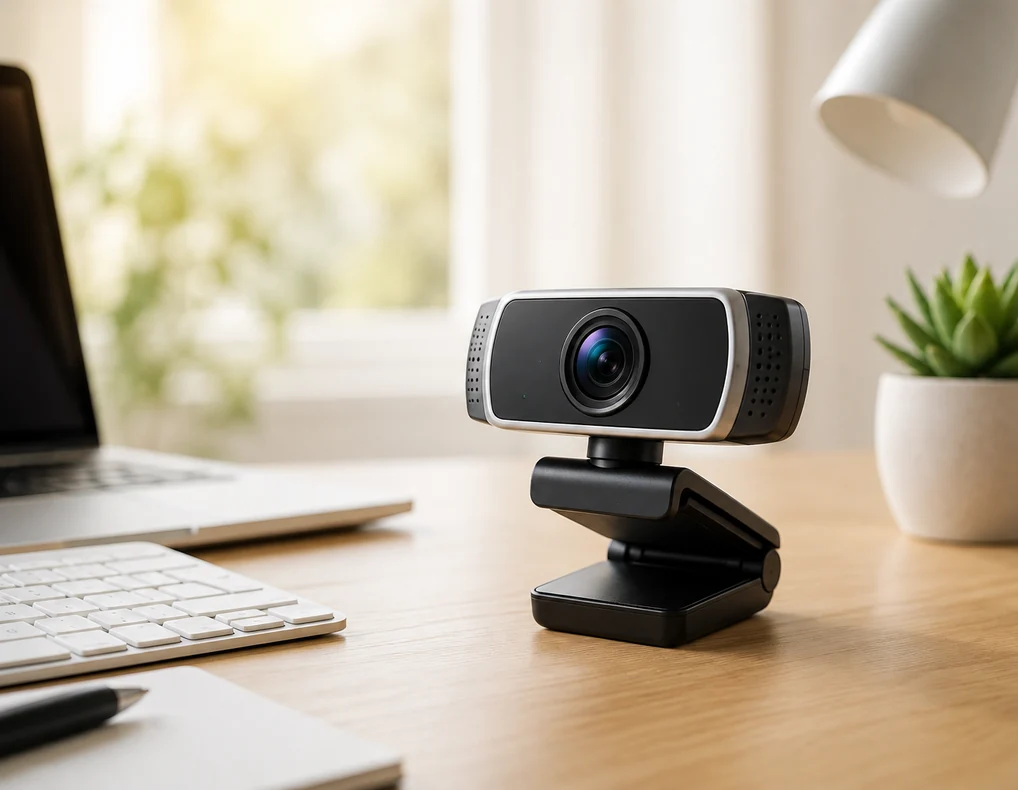
If you’re comparing the best webcams for home office video calls, image quality is only part of the decision. Built-in laptop cameras can still produce soft or grainy video in dim lighting, and on a small desk, an awkward laptop position can also leave the camera at an uncomfortable angle.
A dedicated webcam can provide better positioning and, depending on the model, useful features such as autofocus, improved low-light handling, a privacy shutter, or adjustable lighting. Because it mounts directly to a laptop or monitor, it can also improve your video setup without taking up much additional desk space.
In this guide, we’ll look at practical webcams for home office video calls and the features that matter most when your workspace is limited.
Affiliate Disclosure: Some links in this guide are affiliate links. If you buy through them, we may earn a commission at no extra cost to you.
Table of Contents
- Why the Built-In Camera Falls Short
- What Actually Matters When Choosing One
- Matching a Webcam to Your Setup
- Three Webcam Options Worth Considering
- When You May Not Need a Dedicated Webcam
- A Simple Way to Decide
- What to Check Before Buying
- FAQs
- The Bottom Line
Why the Built-In Camera Falls Short
The main limitation of a built-in webcam on a small desk is often positioning. Because the camera is fixed to the laptop screen, changing the camera angle usually means changing the screen angle too. That can leave the display comfortable but the camera poorly positioned — or the other way around.
A separate webcam gives you more flexibility. You can mount it near eye level on a laptop, external monitor, or compatible stand while keeping your screen where it is comfortable to use.
Image quality can also vary between built-in cameras. If your current webcam struggles with dim lighting, changing exposure, or keeping your face in focus, a dedicated model with better autofocus and low-light handling may provide a more noticeable improvement than simply increasing resolution.
What Actually Matters When Choosing One
Resolution and sharpness. For everyday home office video calls, 1080p is a practical starting point and is widely available in compact webcams. Higher-resolution models, including 4K options, may be useful if you also record video, want more flexibility for cropping, or have other uses beyond routine meetings. Resolution alone does not determine image quality, so also consider lighting performance, autofocus, exposure, and overall camera quality.
Field of view. Field of view determines how much of the room appears in the frame. A narrower view can work well when you sit close to the camera and mainly want your face and upper body visible, while a wider view may be useful for shared calls or when more of the workspace needs to appear. If a webcam offers adjustable field-of-view settings, that flexibility can be useful when your desk setup changes.
Low-light performance. If your desk is away from a window or you often take calls in the evening, low-light performance is worth paying attention to. A webcam that handles limited or uneven lighting well can produce a clearer, more usable image without requiring you to rearrange your workspace before every call. When comparing models, look beyond resolution and check the manufacturer’s lighting features along with credible reviews or sample footage where available.
Autofocus and exposure. Autofocus can help keep your face sharp when you move closer to or farther from the camera, while automatic exposure can adjust the image when lighting conditions change. These features can make everyday calls easier by reducing the amount of manual adjustment needed during a meeting.
Mounting. On a small desk, the webcam’s mounting system can matter almost as much as its image quality. A secure clip that fits your laptop lid or monitor lets you keep the camera off the desk surface and position it closer to eye level without adding a separate tripod or stand.
Before buying, check the type of mount, the thickness of the screen or bezel it can accommodate, and whether the camera can tilt or rotate after installation. If you regularly switch between a laptop and an external monitor, a mount that is easy to reposition can be especially useful.
Microphone quality. Many webcams include a built-in microphone that may be sufficient for everyday video calls in a quiet room. However, sound quality varies by model and background noise can affect clarity. If you regularly attend meetings in a noisy environment, a dedicated headset or microphone may provide better results.
Privacy shutter. If the webcam will stay connected throughout the working day, a physical lens cover can be a useful convenience. Check that the shutter is easy to open and close without moving the camera out of position. Keep in mind that covering the lens does not disable the webcam’s microphone.
Matching a Webcam to Your Setup
If you work directly from a laptop, prioritize a secure clip and a camera position that brings the lens closer to eye level. Because you may sit relatively close to the screen, consider how much of the background the webcam includes at your normal working distance.
With an external monitor, check that the mount fits the display without covering important parts of the screen. A monitor positioned farther back may also give you more flexibility with framing.
If the workspace is shared or you regularly need more than one person in the frame, a wider field of view can be useful. For a single-person setup, you may prefer tighter framing that keeps unnecessary parts of the room out of view.
Features such as automatic framing can be convenient if you move around during calls, while a physical privacy shutter can be useful when the webcam remains connected between meetings.
Whatever your setup, try to avoid adding a separate desk stand unless you actually need one. Mounting the webcam directly to the laptop or monitor usually preserves more usable surface area on a compact desk.
If you’re also trying to keep the rest of your workspace organized, our guide to Best Cable Management Solutions for Small Desks covers some simple ways to keep cables from taking over a compact desk.
Three Webcam Options Worth Considering
| Webcam Type | Best For | Main Advantage | Main Limitation |
|---|---|---|---|
| Compact 1080p Webcam | Everyday video calls | Good balance of image quality and size | Low-light performance varies by model |
| Webcam With Privacy Shutter | Webcam kept connected all day | Physical lens cover for privacy | Shutter does not improve image quality |
| Webcam With Built-In Light | Dim or inconsistent lighting | Adds convenient front lighting | Built-in light may not replace good room lighting |
You don’t need the most expensive webcam for a small home office. Instead, match the features to the way you actually use your desk. These best webcams for home office setups focus on practical features rather than unnecessary extras.
Best Overall: 1080p Compact Webcam
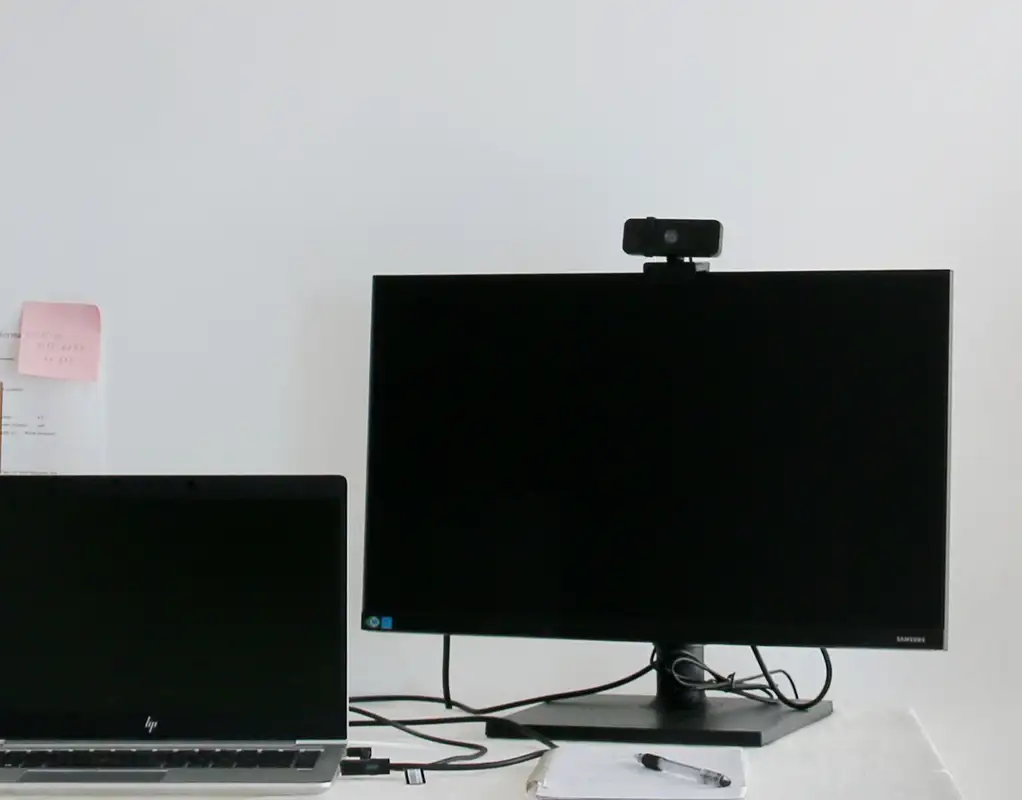
Best for: Everyday work meetings, video calls, and remote work on a small desk.
A compact 1080p webcam is the most practical starting point for many home office setups. Full HD resolution is generally enough for everyday video calls, while the small design can sit on top of a laptop or monitor without taking up additional desk space.
Look for autofocus, automatic exposure adjustment, a secure monitor clip, and a built-in microphone. If your office is not consistently well lit, pay particular attention to the webcam’s low-light performance rather than choosing a model based on resolution alone.
For a small desk, mounting is especially important. The camera should stay securely positioned without forcing the laptop screen or monitor into an uncomfortable angle.
Potential limitation: Image quality can vary significantly between 1080p webcams, particularly in dim lighting. Resolution alone does not tell you how well a camera will perform in real-world video calls.
Best for Privacy: Webcam With Privacy Shutter
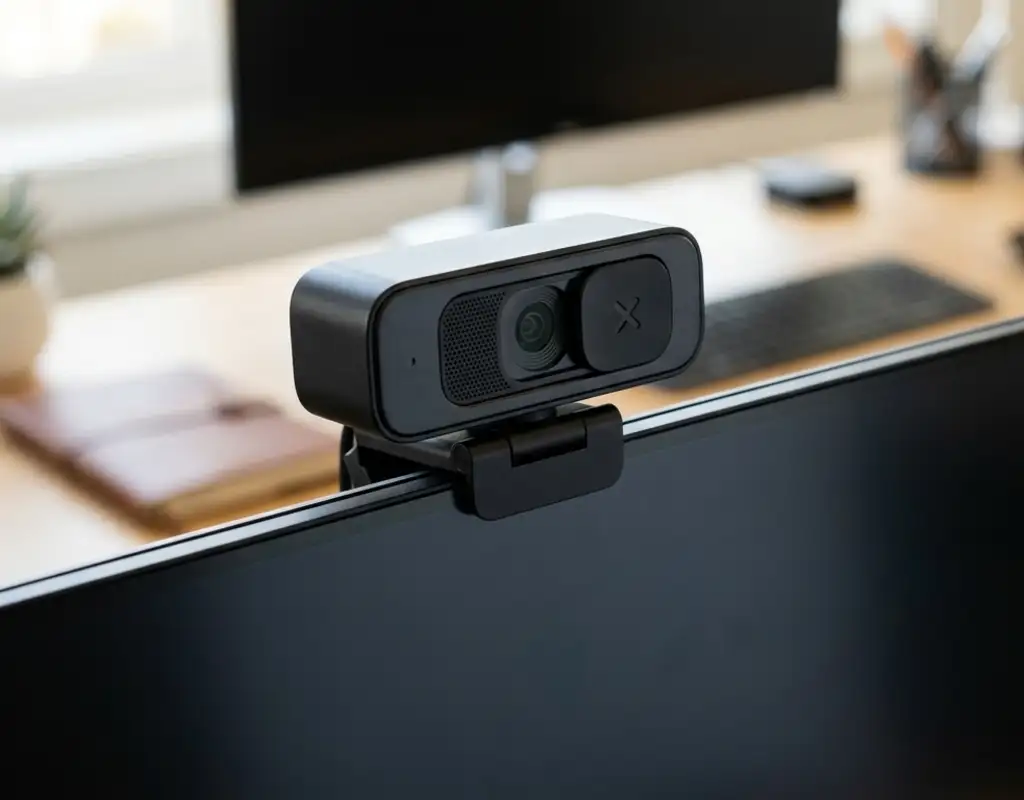
Best for: Home office users who keep their webcam connected throughout the working day.
A webcam with a physical privacy shutter gives you a simple way to cover the camera lens between calls without unplugging the device. This can be particularly convenient on a small desk where you want to keep the setup connected and avoid repeatedly moving cables or accessories.
Look for a shutter that is easy to open and close without shifting the webcam, along with a secure monitor clip, suitable field of view, and reliable autofocus. Image quality still matters, so treat the privacy shutter as an additional convenience rather than the main reason to overlook camera performance.
A physical shutter also provides an immediate visual indication that the lens is covered, which some users may prefer when the webcam remains mounted all day.
Potential limitation: A privacy shutter only covers the camera lens. It does not disable the webcam’s microphone or improve video quality.
Best for Low Light: Webcam With Built-In Light
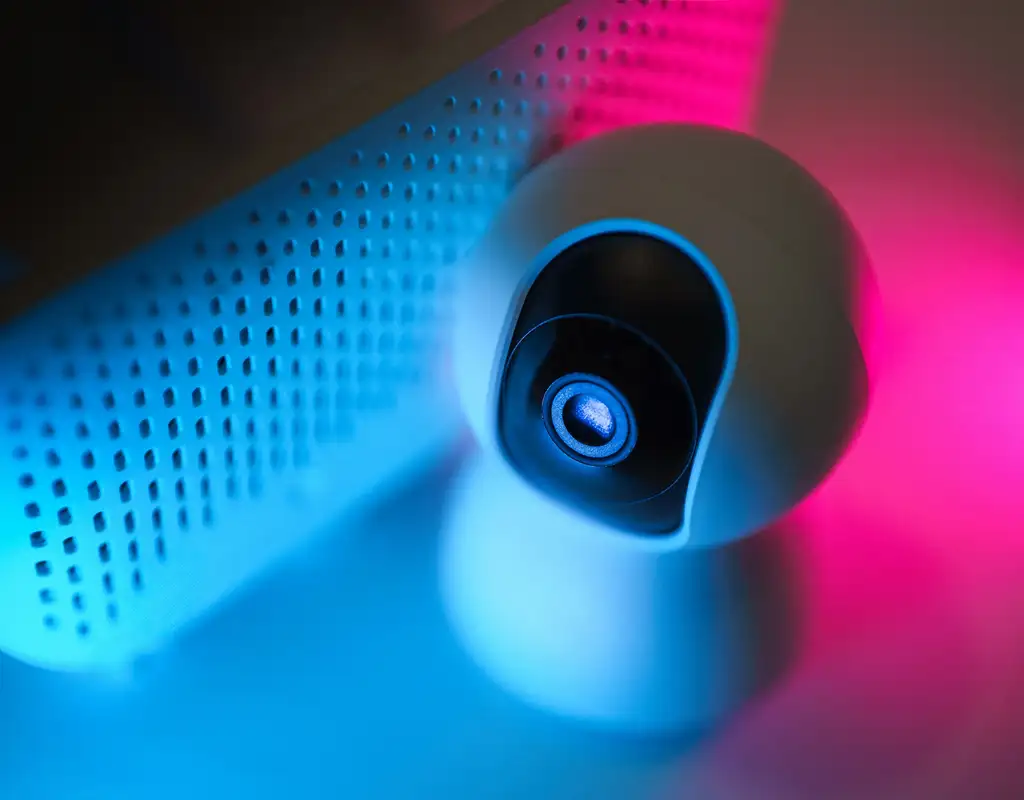
Best for: Home offices with dim, uneven, or changing lighting.
A webcam with a built-in light can be convenient when your desk is away from a window or you regularly take calls in the evening. The extra front-facing light can help illuminate your face without requiring another lamp or light to take up space around a small desk.
Look for a model with adjustable light levels rather than a single fixed brightness setting. Autofocus, automatic exposure adjustment, secure mounting, and good underlying camera performance are still important—a built-in light cannot compensate for a poor camera sensor.
Also consider where your monitor is positioned. At close range, a light that is too bright can be uncomfortable or create an unnatural appearance, so adjustable brightness is particularly useful.
Potential limitation: A small built-in light may help illuminate your face, but it should not be expected to replace good room lighting in every situation.
When You May Not Need a Dedicated Webcam
A separate webcam is not necessary for every home office. If your laptop already provides clear video, handles your room lighting well, and sits at a comfortable camera angle, upgrading may not make a meaningful difference to everyday calls.
You may also be better off improving your lighting or raising the laptop to eye level if poor lighting or an awkward camera position is the main problem.
A dedicated webcam makes more sense when your built-in camera consistently produces soft or noisy video, struggles with your lighting, or cannot be positioned properly for your workspace.
A Simple Way to Decide
Start with the problem you actually want the webcam to solve.
If your main concern is general video quality, a compact 1080p model with reliable autofocus and exposure is a practical place to start. If the camera will remain connected throughout the day, a physical privacy shutter may be useful. If poor lighting is the main issue, consider a model with better low-light performance or adjustable built-in lighting.
Then check whether the webcam mounts securely to your laptop or monitor at a comfortable height. On a small desk, a camera that fits your existing setup without requiring another stand or accessory can be more practical than one with extra features you rarely use.
For most everyday work calls, prioritize reliable image quality, suitable framing, and easy positioning before paying extra for features you may not need.
For more ideas on making a compact workspace work better, see our Small Home Office Layout Ideas guide, especially if you’re deciding where your monitor and webcam should sit.
What to Check Before Buying
Before ordering a webcam, check how it will fit your existing laptop or monitor setup. On a small desk, even a compact model can become awkward if the mounting clip does not fit securely or the camera extends too far forward.
Also check:
- Monitor or laptop bezel thickness
- Available space above the screen
- USB connection type and available ports
- Operating system and video-call app compatibility
- Camera field of view
- Autofocus and exposure features
- Low-light performance
- Whether you need a physical privacy shutter
- Whether the built-in microphone is suitable for your calls
- Whether the camera can tilt or rotate after mounting
If your desk already has a monitor stand, laptop stand, light, or other accessories around the screen, make sure the webcam can be mounted without blocking the display or interfering with your normal setup.
It is also worth checking the manufacturer’s listed dimensions, system requirements, connection type, and compatibility before buying rather than assuming every webcam will work equally well with your computer.
If you’re building a complete small workspace, our Work-From-Home Tech Essentials guide can also help you decide which other tech is actually worth adding to your desk.
FAQs
Is 1080p enough for home office video calls?
For most everyday work meetings and video calls, 1080p is a practical resolution. Other factors such as lighting, autofocus, exposure, and camera positioning can also have a noticeable effect on how your video looks.
Is a 4K webcam worth it for video calls?
A 4K webcam may be useful if you also record higher-resolution video or need additional cropping flexibility. For ordinary work calls, however, you may get more practical value from good low-light performance, reliable autofocus, and proper lighting.
Should I use a webcam with a built-in microphone?
A built-in microphone can be convenient for calls in a relatively quiet room. If background noise is common or voice clarity is especially important, a headset or dedicated microphone may be a better option.
Is a privacy shutter useful on a webcam?
It can be useful if your webcam remains connected throughout the day. A physical shutter lets you cover the lens between calls, although it does not disable the webcam’s microphone.
Where should I position a webcam on a small desk?
Try to position the camera close to eye level and roughly centered with your normal sitting position. Avoid placing it where other desk accessories block the lens or where mounting it forces your monitor or laptop into an uncomfortable angle.
Does a webcam with a built-in light work in a dark room?
A built-in light can provide additional illumination, particularly when your face is poorly lit. However, a small integrated light may not fully compensate for very poor room lighting.
The Bottom Line
A dedicated webcam can be a worthwhile upgrade when your built-in camera struggles with image quality, lighting, or positioning. On a small desk, the best option is one that mounts securely to your existing screen without requiring additional desk space.
For everyday video calls, a compact 1080p webcam is a practical starting point. Choose a model with a physical privacy shutter if the camera stays connected between meetings, or consider better low-light performance or built-in lighting if your workspace is often dim.
Before buying, check the mounting system, field of view, autofocus, connection type, compatibility, and microphone quality rather than choosing on resolution alone.
Ultimately, the right webcam is the one that fits your screen, works well in your lighting, and makes everyday calls easier without adding unnecessary clutter to your workspace.